AI inside WordPress is evolving faster than most site owners realize.
A year ago, AI tools mainly helped with content generation. You asked ChatGPT for a blog outline, copied the output, pasted it into WordPress, adjusted formatting, added SEO metadata manually, uploaded images yourself, and then repeated the same workflow again the next day.
That workflow already feels outdated.
Modern AI systems are moving toward something much bigger: agentic operations.
Instead of acting like passive assistants, AI tools can now actively interact with software environments, understand context, execute tasks, manage workflows, and coordinate operations across your website infrastructure.
And this is exactly where WordPress MCP Servers enter the picture.
With a properly configured Model Context Protocol (MCP) server, tools like Claude Desktop, ChatGPT, Gemini, Cursor, Cline, or LibreChat can directly interact with your WordPress site through structured permissions and secure tool access.
That means your AI assistant can:
- Read and analyze your content
- Update SEO metadata
- Create WooCommerce products
- Generate coupons
- Manage snippets
- Review analytics
- Scan security logs
- Clear caches
- Create pages
- Modify settings
- Schedule automations
without you touching code or manually navigating dozens of WordPress dashboards.
For years, this type of infrastructure required:
- API engineering
- Webhook orchestration
- Terminal configuration
- Custom PHP
- JSON-RPC setups
- OAuth development
- Proxy bridges
Now, non-technical users can deploy much of this visually.
This guide breaks down everything you actually need to know about no-code WordPress MCP Servers — including security, workflow advantages, setup tutorials, platform comparisons.
What is an MCP Server?
The easiest way to understand an MCP server is to stop thinking about AI as “chat software.”
Instead, think about AI as an operational assistant that needs access to tools.
An MCP Server acts as the structured bridge between the AI model and your WordPress environment.
Anthropic introduced the Model Context Protocol as a universal standard that allows AI systems to interact with external environments safely and intelligently.
Without MCP, AI models are isolated.
They can generate text, but they cannot actually interact with your systems.
With MCP, they gain controlled operational capabilities.
The Smartphone Permission Analogy
The best analogy is smartphone app permissions.
When you install an app, your phone asks:
- Allow camera access?
- Allow microphone access?
- Allow contacts access?
- Allow file access?
You choose exactly what the app can interact with.
MCP works similarly.
Instead of giving Claude or ChatGPT unrestricted access to your WordPress installation, the MCP server exposes carefully controlled “tools.”
For example:
| Tool Access | What the AI Can Do | |
|---|---|---|
| Read Posts | Analyze existing articles | |
| Edit Metadata | Update SEO descriptions | |
| WooCommerce Access | Manage products and pricing | |
| Media Tools | Upload or generate images | |
| User Tools | Review roles and permissions | |
| Cache Management | Clear cached files | |
| Security Logs | Analyze failed login attempts |
The AI never receives raw server control.
It only operates through the tools you approve.
That distinction is critical.
Why MCP is Different From Traditional Automation
Many people confuse MCP with automation platforms like:
- Zapier
- Make
- Pabbly
- IFTTT
But the architecture is fundamentally different.
Traditional automation systems are static.
They follow rigid trigger chains like:
“If X happens → Execute Y action”
MCP is dynamic.
The AI decides which tools to use based on the context of your conversation.
You could say:
“Review my recent blog content, identify weak SEO pages, improve their metadata, generate missing excerpts, and prepare social promotion snippets.”
The AI dynamically determines:
- Which posts to read
- Which SEO fields need adjustment
- Which tools to call
- What content requires modification
- Which workflow sequence makes sense
You are no longer building fixed automation trees.
You are giving the AI operational intelligence.
That is a massive shift.
How an MCP Server Changes WordPress Workflows?
The biggest impact of WordPress MCP systems is workflow compression.
Tasks that normally require:
- Multiple plugins
- Several dashboards
- Spreadsheet exports
- SEO tools
- Manual copy/pasting
- Constant tab switching
can suddenly happen inside a single conversation.
That operational difference compounds quickly.
Content Management and SEO Automation
This is where most site owners immediately notice value.
Instead of manually editing articles one by one, AI can work across your content structure contextually.
You can ask your AI assistant to:
- Review blog categories
- Identify keyword cannibalization
- Rewrite introductions
- Generate excerpts
- Add internal links
- Improve readability
- Optimize heading hierarchy
- Update featured images
- Create schema-friendly summaries
- Refresh outdated posts
Example:
“Analyze my top 20 traffic pages and update their Rank Math focus keywords using semantic variations that match current search intent.”
Normally, that would require hours of manual work.
With MCP-connected AI, the workflow becomes conversational.
Practical SEO Workflows
Bulk Meta Description Optimization
Instead of editing metadata manually:
“Generate CTR-focused meta descriptions for all blog posts published before January 2026.”
The AI can:
- Query your posts
- Read the content
- Analyze topical relevance
- Write optimized metadata
- Save the changes
Internal Link Building
Internal linking is one of the most neglected SEO tasks because it is tedious.
With MCP:
“Find relevant opportunities to internally link my WooCommerce shipping article to other logistics-related posts.”
The AI can analyze contextual relationships automatically.
Content Refresh Campaigns
Older content often loses rankings because it becomes stale.
An MCP workflow allows:
“Identify outdated AI articles, refresh examples, improve formatting, add FAQs, and update publication dates.”
Instead of manually reopening old articles for hours, the AI coordinates the process directly.
WooCommerce Automation and E-Commerce Operations
This is where WordPress MCP becomes genuinely powerful for businesses.
WooCommerce stores contain operational data that AI can actively manage.
That includes:
- Inventory
- Pricing
- Product descriptions
- Variations
- Attributes
- Orders
- Coupons
- Reviews
- Revenue summaries
Traditional AI tools could only suggest changes.
MCP-connected AI can execute them.
Product Description Optimization
You can instruct your AI assistant to:
- Rewrite thin descriptions
- Add emotional persuasion
- Improve SEO
- Highlight benefits
- Standardize formatting
- Create feature comparison blocks
Example:
“Rewrite all summer collection product descriptions with a premium lifestyle tone and include mobile-friendly bullet formatting.”
The AI can process products sequentially through WooCommerce tools.
Variable Product Management
Managing variable products manually is painful.
Especially when handling:
- Sizes
- Colors
- Attributes
- Inventory
- Pricing tiers
MCP-enabled AI can coordinate those operations conversationally.
Example:
“Update all red sneaker variations with a 10% sale discount and adjust stock labels to low inventory.”
Coupon and Campaign Generation
You can generate promotional campaigns directly through AI workflows.
Example:
“Create a weekend coupon campaign for abandoned carts and generate matching promotional copy.”
The AI can:
- Create the coupon
- Configure expiration
- Generate banner copy
- Write email snippets
- Draft announcement content
That workflow normally touches multiple systems manually.
Site Maintenance and Operational Management
Most WordPress maintenance tasks are repetitive and fragmented.
You move between:
- Cache plugins
- Security tools
- Backup dashboards
- Hosting panels
- Optimization utilities
MCP dramatically simplifies this operational layer.
Cache and Performance Management
You can instruct your AI to:
- Clear stale cache
- Review optimization logs
- Analyze plugin conflicts
- Identify large assets
- Review performance spikes
Example:
“Clear expired cache files and identify plugins slowing mobile performance.”
Plugin and Theme Monitoring
Instead of manually checking dashboards:
“Show me outdated plugins with known security risks.”
The AI can query plugin data directly.
Some MCP systems also expose:
- Version history
- Compatibility warnings
- Dependency relationships
Security Monitoring
This is one of the most underrated use cases.
You can ask:
“Check failed login spikes during the last 48 hours.”
Or:
“Review recent admin account activity.”
Or:
“Identify plugins with unusual behavior patterns.”
Without MCP, you manually inspect several tools.
With MCP, the AI consolidates the analysis.
Security Matters More Than Features
Most people get excited about AI automation and completely ignore the security layer underneath it.
That is dangerous.
Especially with WordPress.
The Growing Security Problem Around MCP Servers
Recent industry research revealed something alarming:
Approximately 41% of publicly accessible MCP servers lacked proper authentication entirely.
That means anonymous users could potentially:
- Trigger tool calls
- Enumerate endpoints
- Scrape content
- Abuse resources
- Flood requests
For WordPress websites, this becomes especially risky because MCP tools may expose:
- Draft posts
- User metadata
- Store operations
- WooCommerce systems
- Plugin configurations
- Security logs
A badly configured MCP endpoint can quickly become a serious attack surface.
What Happens When an MCP Server is Poorly Secured?
A vulnerable MCP setup can lead to:
Unauthorized Content Access
Attackers could:
- Read unpublished drafts
- Access private pages
- Inspect metadata
- Query protected content
Destructive Tool Execution
If permissions are weak:
- Posts could be deleted
- Products modified
- Settings changed
- Menus altered
Resource Exhaustion
AI requests can become extremely resource-intensive.
Without throttling:
- CPU usage spikes
- Database load increases
- Hosting performance degrades
- Sites slow down
This is especially dangerous on shared hosting.
The Non-Negotiable Security Checklist
Before installing any WordPress MCP server, verify these protections exist.
Strong Authentication
Your MCP server should support:
- OAuth 2.1
- API key authentication
- Session validation
- Application passwords
- Token rotation
Never expose public endpoints without access control.
Rate Limiting
AI tools can generate rapid execution chains very quickly.
Good MCP systems throttle requests automatically.
Recommended defaults:
- 60 requests per minute
- IP-based throttling
- Burst protection
- Session cooldowns
Granular Permissions
Non-technical users should be able to visually control:
- Which tools are enabled
- Which user roles can authorize actions
- Which operations require confirmation
- Which systems remain read-only
The best platforms expose these controls through toggles instead of configuration files.
Data Redaction
Sensitive information should never be exposed directly to AI models.
A secure MCP layer should automatically mask:
- Emails
- Tokens
- Payment data
- License keys
- Sensitive user fields
Especially when connecting external AI systems.
The Best No-Code WordPress MCP Servers Right Now
Several major players currently dominate the WordPress MCP ecosystem.
Each takes a different approach.
Some prioritize infrastructure.
Others prioritize security.
Some focus entirely on operational usability.
StifLi Flex MCP
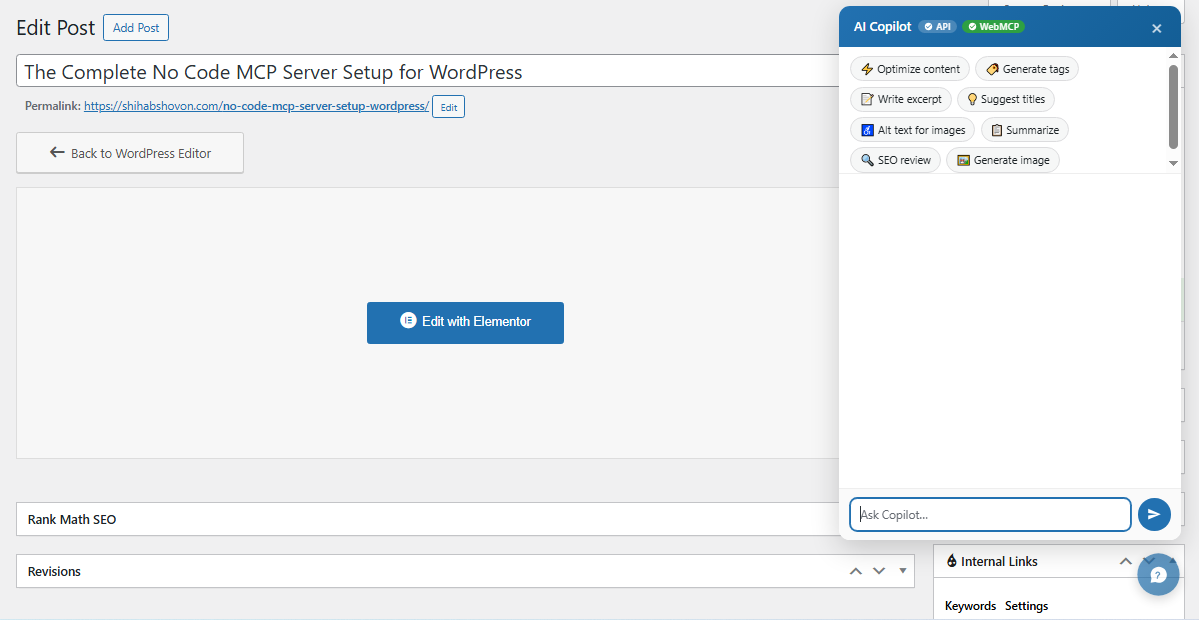
StifLi Flex is arguably the most ambitious no-code MCP platform currently available for WordPress.
Instead of acting as “just another connector,” it transforms WordPress into a fully operational AI workspace.
That difference matters.
Most MCP tools focus only on external AI connectivity.
StifLi Flex goes much further by embedding:
- AI chat interfaces
- AI copilots
- Content generation tools
- Media generation
- WooCommerce management
- Automation scheduling
- Rollback systems
directly inside the WordPress dashboard itself.
What Makes StifLi Flex Different?
Several things stand out immediately.
Embedded AI Workspace
You are not constantly jumping between:
- Claude Desktop
- External terminals
- Config files
- Remote dashboards
The AI exists inside WordPress.
That operational flow feels dramatically smoother.
Massive Built-In Tool Ecosystem
StifLi Flex includes:
- 117+ integrated tools
- WooCommerce operations
- ACF integrations
- Snippet management
- SEO compatibility
- Automation workflows
- AI image generation
- AI video generation
It effectively becomes an AI operating layer for WordPress.
The Rollback Engine
This is probably the most important feature.
AI automation introduces risk.
Even advanced models occasionally make unwanted changes.
StifLi Flex tracks AI-driven actions with before/after snapshots and allows full conversational rollback.
That means you can reverse:
- Bulk edits
- Product changes
- Content rewrites
- Media operations
- Configuration updates
with one click.
For non-technical users, that dramatically reduces fear around AI automation.
Royal MCP
Royal MCP approaches the market differently.
Its biggest emphasis is security architecture.
Instead of focusing on embedded AI environments, it prioritizes:
- Authentication
- Request validation
- Rate limiting
- Session control
- Plugin-aware integrations
It includes:
- 67 core tools
- 55 integration-based extensions
- WooCommerce operations
- Elementor integrations
- SEO tools
- Security-focused controls
One particularly useful feature is automatic tool expansion.
If compatible plugins activate, Royal MCP dynamically exposes additional tools automatically.
That creates a very modular architecture.
MCP Adapter by Automattic
The official MCP Adapter is more foundational and infrastructure-focused.
It connects WordPress’s internal Abilities API to MCP protocol standards.
Its strengths include:
- Open-source architecture
- Standards compliance
- Multi-transport support
- HTTP + STDIO compatibility
- Extensible infrastructure
However, compared to visual no-code platforms, it still feels more developer-oriented.
Even though setup is becoming easier, the workflow still leans toward technical environments compared to StifLi Flex.
No-Code MCP Server Comparison
| Evaluation Metric | StifLi Flex MCP | Royal MCP | MCP Adapter | |
|---|---|---|---|---|
| Tool Count | 117+ Built-In | 67 Core + 55 Conditional | Minimal Core Tools | |
| AI Dashboard | Embedded | External Required | External Required | |
| WooCommerce Tools | Extensive | Extensive | Expandable | |
| AI Copilot | Included | No | No | |
| Automation Tasks | Included | Limited | External | |
| Rollback System | Yes | No | No | |
| OAuth Support | Yes | Partial | Depends on Setup | |
| Security Focus | Strong | Extremely Strong | Infrastructure-Level | |
| Ease of Use | Excellent | Moderate | Moderate | |
| Best Audience | Non-Technical Users | Security-Focused Users | Developers |
Set Up Royal MCP Server - Step by Step Guide
Royal MCP is one of the best options for users prioritizing security and structured external AI connectivity.
This setup walkthrough assumes zero coding knowledge.
Step 1: Install Royal MCP
Inside WordPress:
- Navigate to Plugins → Add New
- Upload the Royal MCP ZIP package
- Click Install Now
- Click Activate
Once activated, a dedicated Royal MCP settings panel appears in the WordPress admin sidebar.
Inside this dashboard, you will see sections for:
- Authentication
- Security
- Integrations
- Rate Limiting
- Endpoint Configuration
- Plugin-Aware Tools
Before connecting any AI client, configure security first.
Do not skip this step.
Step 2: Generate a Secure Authentication Token
Inside the Authentication section:
- Click Generate Secure Token
- The system creates a cryptographically secure API key
- Copy the token immediately
- Store it safely
This key acts as the authentication layer between your WordPress site and external AI systems.
Without it, requests should be rejected automatically.
Recommended Security Practices
When creating tokens:
- Use separate tokens per AI client
- Rotate tokens periodically
- Disable unused sessions
- Never reuse admin passwords
If Royal MCP supports IP restrictions, enable them.
Step 3: Configure Rate Limiting and Protection Rules
Now move into the Security panel.
This section matters enormously.
Recommended settings:
| Setting | Recommended Value | |
|---|---|---|
| Request Limit | 60/minute | |
| Burst Requests | 10 | |
| Failed Auth Lockout | Enabled | |
| Session Expiration | 24 Hours | |
| Logging | Enabled |
These settings help prevent:
- AI execution loops
- Resource abuse
- Unauthorized scanning
- Hosting slowdowns
Especially on shared hosting environments.
Step 4: Enable Plugin-Aware Integrations
Royal MCP dynamically expands available tools when compatible plugins are detected.
Inside Integrations:
Enable tools for:
- WooCommerce
- Elementor
- SEO plugins
- Security systems
- Cache plugins
Once enabled, the MCP server exposes those capabilities to connected AI clients automatically.
Step 5: Connect Claude Desktop
Now connect your AI client.
Inside Royal MCP:
- Copy the generated MCP endpoint URL
- Open Claude Desktop settings
- Add a custom MCP connection
- Paste the endpoint
- Add the authentication token
- Save configuration
Once connected, Claude can begin discovering approved WordPress tools.
Step 6: Test the Connection
Before allowing broad operations, test safe queries first.
Example:
“List my recent published posts.”
Then try:
“Show installed plugins.”
Verify:
- Permissions work correctly
- Sensitive tools remain protected
- Response times remain stable
Only expand permissions gradually.
Set Up MCP Adapter by Automattic - Step by Step Guide
The official MCP Adapter uses WordPress’s underlying Abilities API infrastructure.
Although more technical than other solutions, modern workflows make setup much easier than before.
Step 1: Verify WordPress Compatibility
The MCP Adapter works best with:
- WordPress 6.9+
This version includes the Abilities API directly inside WordPress core.
If you are running older versions, update first.
Before proceeding:
- Update plugins
- Backup your site
- Verify PHP compatibility
Step 2: Install the MCP Adapter
Inside WordPress:
- Go to Plugins → Add New
- Install the MCP Adapter
- Activate the plugin
The plugin initializes MCP-compatible routes automatically.
Step 3: Create Application Passwords
This acts as the authentication layer.
Inside WordPress:
- Navigate to Users → Profile
- Scroll to Application Passwords
- Create a password named after your AI client
- Click Generate
- Copy the generated credentials
Important: Application passwords are different from your admin login password.
Do not share your primary WordPress credentials.
Step 4: Configure External MCP Access
Unlike StifLi Flex, the MCP Adapter primarily operates through external AI environments.
You connect:
- Claude Desktop
- Cursor
- VS Code AI tools
- Local MCP clients
using the generated credentials.
The client then communicates with your WordPress site through the MCP bridge.
Step 5: Test Ability Discovery
Once connected, the AI client should discover available WordPress abilities automatically.
Test queries like:
“List available WordPress tools.”
Or:
“Show accessible content operations.”
This verifies the connection pipeline works correctly.
Step 6: Expand the Environment Gradually
The MCP Adapter is intentionally minimal by default.
Advanced capabilities usually require:
- Additional abilities
- Plugin integrations
- Extended configurations
That flexibility is powerful, but it also means non-technical users may eventually hit complexity walls compared to turnkey platforms.
Set Up StifLi Flex - Step by Step Guide
StifLi Flex focuses heavily on reducing friction for non-technical WordPress users.
Most configuration happens visually inside the dashboard.
Step 1: Install and Activate StifLi Flex MCP
Inside WordPress:
- Navigate to Plugins → Add New
- Upload the StifLi Flex plugin
- Click Install
- Activate the plugin
Immediately after activation, the platform initializes:
- MCP services
- AI workspace modules
- Chat systems
- Copilot features
without requiring manual infrastructure setup.
Step 2: Configure the AI Environment
Inside the StifLi dashboard:
- Open the AI settings panel
- Select your preferred provider:
- OpenAI
- Claude
- Gemini
- Enter your API credentials
- Save configuration
The AI workspace becomes operational immediately.
Step 3: Initialize MCP Auto-Discovery
Now configure external MCP connectivity.
Inside MCP Settings:
- Click Initialize Connection Handshake
- Approve discovery permissions
- Confirm authentication flow
Unlike traditional MCP systems, this process avoids manual JSON editing and complicated configuration mapping.
That simplification is one of StifLi Flex’s biggest advantages.
Step 4: Configure Role Restrictions
Inside Permissions:
You can visually control:
- Which roles authorize AI actions
- Which tools require approval
- Which systems remain read-only
- Which operations can run automatically
Example restrictions:
| Permission | Recommendation | |
|---|---|---|
| Delete Posts | Require Approval | |
| WooCommerce Pricing | Admin Only | |
| Plugin Editing | Restricted | |
| Media Uploads | Allowed | |
| Content Drafting | Allowed |
This creates much safer operational boundaries.
Step 5: Enable the AI Copilot
The AI Copilot operates directly inside the editor.
Once enabled:
- Open a post
- Open a WooCommerce product
- Launch a page builder
- Start editing
The floating AI workspace appears contextually.
This allows real-time operations like:
- Rewrite content
- Generate excerpts
- Create tags
- Insert blocks
- Generate images
- Update metadata
without leaving the editor itself.
Step 6: Test Embedded AI Operations
Start with lightweight actions first.
Examples:
“Improve this introduction.”
Or:
“Generate a better product summary.”
Or:
“Create an SEO-friendly excerpt.”
Watch how the AI modifies content directly inside WordPress.
StifLi Flex visually highlights modified areas, making changes easy to review before approval.
Why StifLi Flex is the Strongest Overall No-Code Solution?
All three platforms are capable.
But they serve different audiences.
For most non-technical WordPress users, StifLi Flex currently delivers the most complete operational experience.
Workflow Friction
This is the real separator.
Royal MCP and the MCP Adapter still revolve around external tooling.
You frequently work inside:
- Claude Desktop
- Configuration files
- External dashboards
- Separate clients
StifLi Flex collapses those layers directly into WordPress.
That creates a dramatically smoother workflow.
The Embedded AI Workspace
Most AI workflows fail because operational friction becomes exhausting.
Constantly switching tabs kills momentum.
StifLi Flex solves that by embedding:
- AI chat
- Copilot systems
- Workflow tools
- Automation layers
inside the admin environment itself.
That feels fundamentally different during real daily use.
The Rollback Engine
This cannot be overstated.
AI automation introduces anxiety.
People fear:
- Bulk mistakes
- Accidental deletions
- Bad rewrites
- Broken layouts
StifLi Flex’s rollback architecture solves that trust problem directly.
Being able to reverse entire AI sessions changes how comfortable users feel delegating operations.
That safety net matters enormously for adoption.
WordPress MCP Servers represent one of the biggest infrastructure shifts happening inside the AI ecosystem right now.
We are moving away from isolated prompt generation and toward operational AI systems capable of interacting directly with real business environments.
For WordPress users, this unlocks:
- AI-assisted SEO
- Conversational WooCommerce management
- Automated publishing workflows
- Security analysis
- Content orchestration
- Media generation
- Operational automation
without requiring development experience.
Right now:
- Royal MCP excels in security-focused deployments
- MCP Adapter provides the foundational protocol framework
- StifLi Flex delivers the most complete no-code operational ecosystem overall
The long-term shift is bigger than WordPress itself.
We are entering a world where AI no longer just answers questions.
It actively performs work inside the systems businesses rely on every day.